Best free Adobe Acrobat alternatives in 2026
Colby Flood · October 23, 2026 · 11 min read
Acrobat is the tool most offices reach for when a PDF needs more than reading, and the subscription behind it is a line item that never goes away. Most of what people actually do with PDFs is ordinary: combine a few files, pull out pages, fill a form, sign, add a comment, put a password on something. In 2026 all of that is free, and in more than one way: open source editors that never phone home, a self-hosted toolbox for a whole team, and the tools already sitting on your Mac or in your browser.
This guide compares eight free Acrobat alternatives on the things that decide whether a switch sticks: whether it edits a PDF in place or rebuilds it, how it handles forms and signatures, whether your documents stay on your machine, what platforms it runs on, and what "free" actually means in each case. The list starts with our pick, and every entry says where it falls short.
Quick picks
- Our pick: PdfCraft, open source, edits in place, forms, redaction, passwords and signatures, Mac, Windows and Linux, no subscription.
- Most features for nothing: PDFgear, a free closed-source editor with OCR and conversion.
- Best for a team on its own server: Stirling PDF, self-hosted and open source.
- Best free Windows toolbox: PDF24 Creator.
- Best reader and annotator on Linux: Okular.
- For changing the words on the page: LibreOffice Draw, with care.
- Already on a Mac: Preview.
- Adobe's own free option: Acrobat Reader and the online tools, with quotas.
How we judged them
In place or rebuilt. Some tools edit the PDF as it is, keeping links, form fields, layers and attachments. Others rebuild the page from scratch and hope it looks the same.
Forms and signatures. Filling a form is table stakes. Building one, and signing with something a recipient can verify, is where free tools separate.
Where the document goes. A contract or a medical record should not leave your machine to be merged. We say which tools upload and which do not.
Platforms. Mac, Windows, Linux, the browser.
What free means. Open source and free for good is one thing. A free app from a company with a business model to find is another. A free tier with a transaction quota is a third. We name the catch each time.
1. PdfCraft
PdfCraft is an open source PDF editor for Mac, Windows and Linux that views and searches PDFs, organizes, combines and splits pages, fills and builds forms, adds comments, redacts, protects with passwords and signs, with a command-line tool and an MCP server for automation. It is a native app written in Rust, it runs offline, it never asks for a subscription, an account or a card, and it is released under the Apache 2.0 licence.
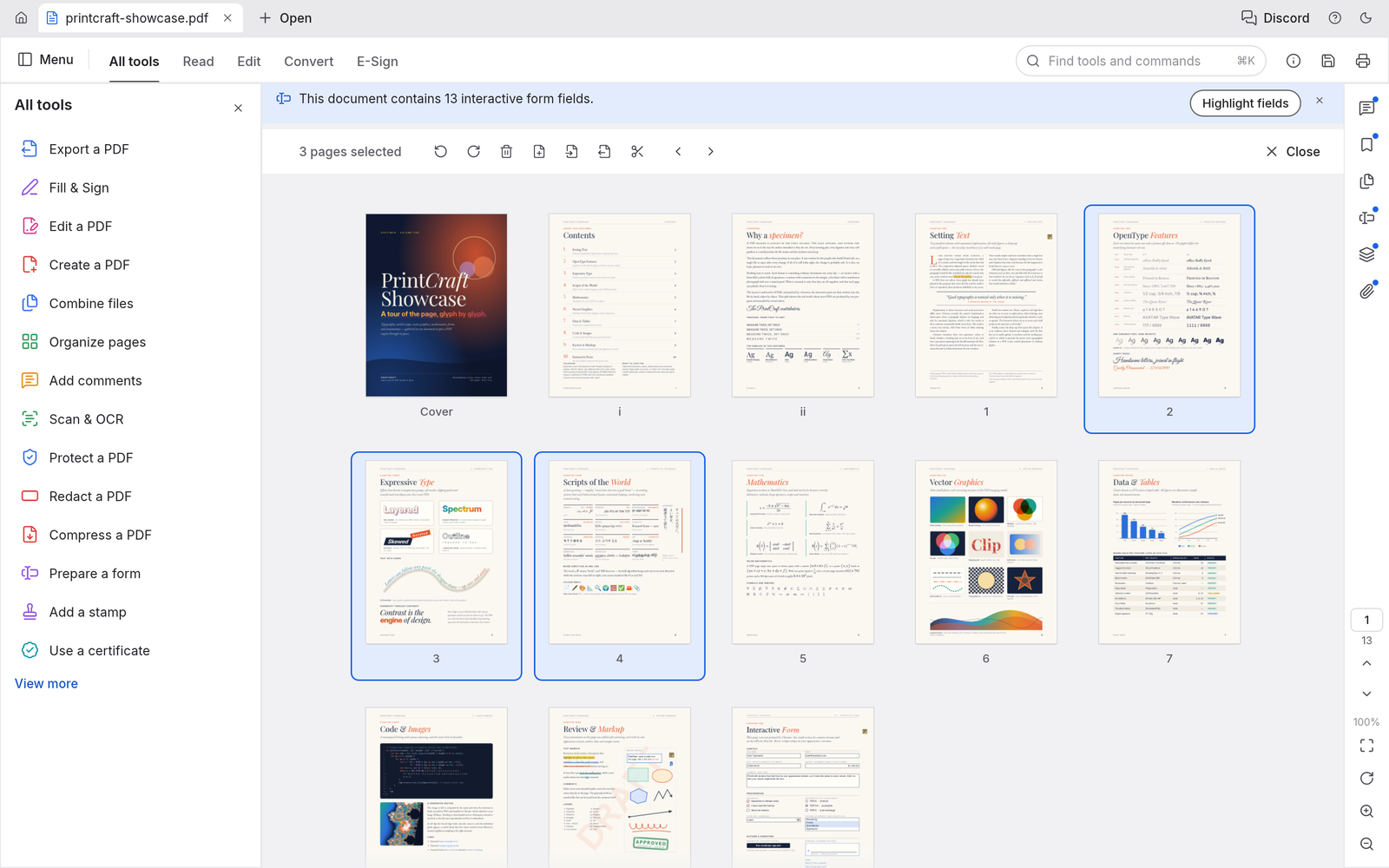
Screenshot: ArtCraft, from the project's own documentation.
What it is good at. Everyday Acrobat work, done the careful way. Pages are rotated, deleted, moved and inserted like cards on a table, files combine into one document with a bookmark for each, and extracting or splitting keeps links, form fields, layers and attachments intact. Forms can be filled and authored, comments are threaded, and password protection covers every revision of the PDF standard with permissions honoured. Every save is incremental and atomic, so the original bytes stay intact, undo still works after saving, changes autosave every minute, and a crash offers recovery on the next launch. Native builds exist for Apple silicon and Intel Macs, Windows on x64, x86 and ARM64, Linux and FreeBSD, plus a browser build you can host yourself.
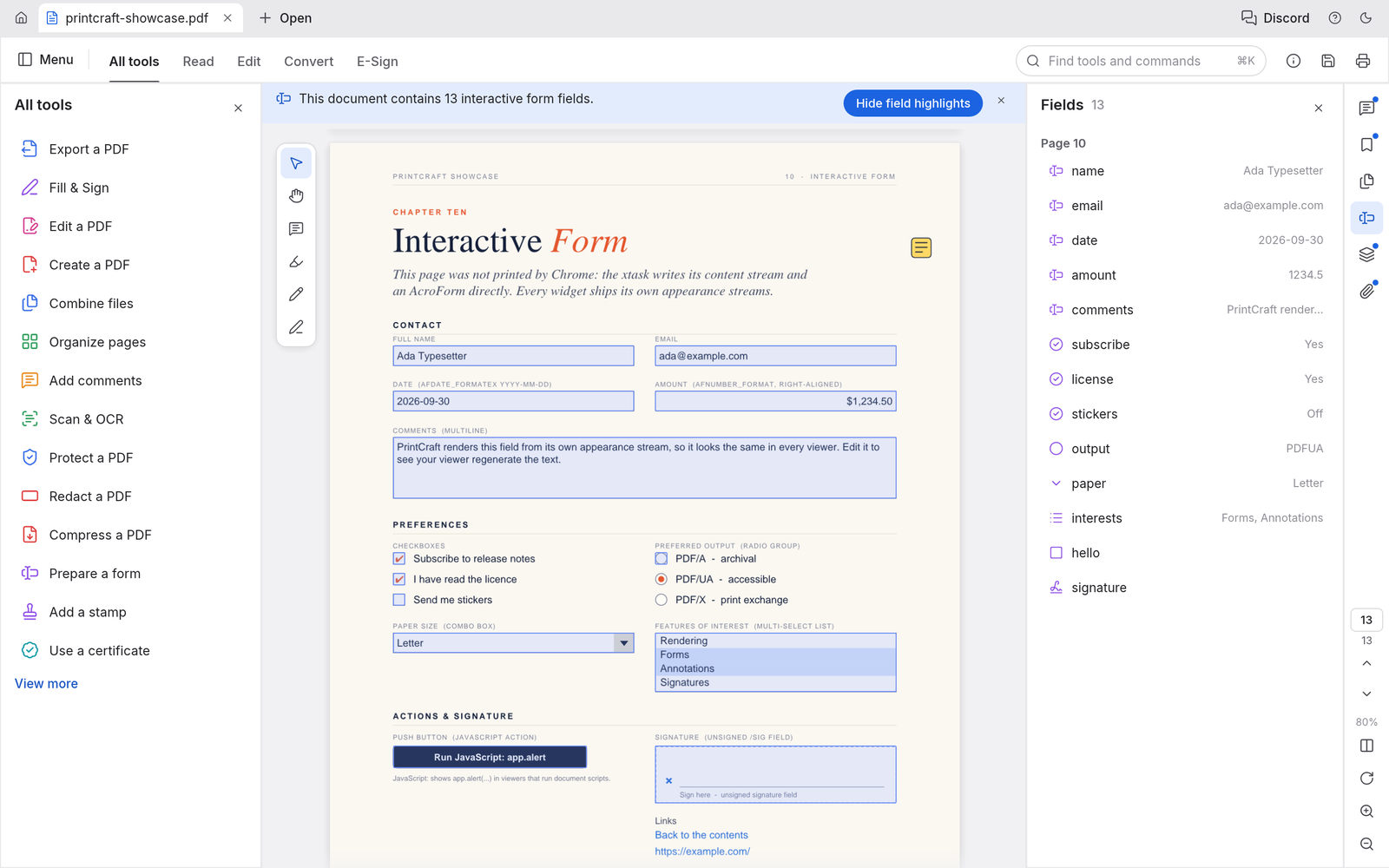
Screenshot: ArtCraft, from the project's own documentation.
The catches. The project tracks its own numbers honestly: about half of Acrobat Pro's offline features are in and 88 percent of the must-haves, and it names what is still thin: reliable editing of existing text, especially in Chinese, Japanese and Korean, OCR beyond Latin script, Office import and export, signature timestamps, PDF/A preflight and XFA forms. A release lands most weeks, so features move between versions.
Who it suits. Anyone who combines, splits, fills, signs, comments and protects PDFs all day and wants it done on their own machine, teams that need the same tool on Mac, Windows and Linux, and anyone who wants to script it.
2. PDFgear
PDFgear is the free PDF editor that keeps surprising people: editing text and images in place, annotation, merging, splitting, conversion to and from Office formats, OCR for scanned documents, signing, and an AI assistant that summarises and answers questions about a document, with no subscription and no watermark, on Windows, Mac, iPhone and iPad.
What it is good at. The broadest feature list of any free editor here, including the two things most free tools skip, OCR and Office conversion, in a simple interface.
The catches. It is closed source from a company that has not said how it makes money, which is a fair question before you feed it contracts, the AI features send document text to a cloud model, and reviewers report lag on large files. Linux is not supported.
Who it suits. People who want the most Acrobat-like feature set for nothing and are comfortable with a closed app.
3. Stirling PDF
Stirling PDF is an open source toolbox you run on your own server, usually with one Docker command, and then use from any browser on the network: merge, split, rotate, compress, convert, OCR, watermark, sign, redact, fill forms, and dozens more operations, with nothing leaving the machine it runs on. The self-hosted free plan has no time limit and covers up to five users, and paid tiers add single sign-on, audit logs and larger teams.
What it is good at. Giving a whole team the "online PDF tools" experience without sending documents to someone else's cloud, and automating PDF chores through its API.
The catches. It is a toolbox of operations rather than an editor you sit in: no real page view for reading and commenting, and someone has to run the server. The paid tiers are priced for companies.
Who it suits. Small businesses, agencies and IT teams that want one PDF tool for everyone, on their own infrastructure.
4. PDF24 Creator
PDF24 Creator is a free Windows application from a German company that has given it away for years: merge, split, rearrange pages, compress, convert, protect, sign, watermark, stamp, and a print-to-PDF driver, with no limits, no watermark and no upload. Version 11.30.1 arrived in April 2026.
What it is good at. The Windows office toolbox: every common PDF chore in one place, offline, free without restrictions.
The catches. Windows only, no editing of existing text or layout, annotation is thin, and it is supported by the company's paid products rather than by a licence that guarantees anything.
Who it suits. Windows users who need the toolbox rather than the editor.
5. Okular
Okular is the KDE community's document viewer, and it is the best free reader and annotator on Linux: fast, open source under the GPL, with highlighting, drawing, text boxes, stamps, inline notes, form filling and digital signature creation, and annotations saved into the PDF as standard annotations other apps can read. Version 26.04.3 arrived in July 2026, and it runs on Windows and macOS as well as Linux.
What it is good at. Reading and marking up documents, filling forms, and signing, with a light footprint.
The catches. It is a viewer, not an editor: no page organisation, no text editing, no redaction, and form filling can still be rough on complex forms.
Who it suits. Anyone on Linux who needs to read, annotate, fill and sign.
6. LibreOffice Draw
LibreOffice opens PDFs in Draw by rebuilding each page as text boxes, images, lines and shapes, so you can change the words on the page, move things around and export a new PDF. It is free and open source on every desktop.
What it is good at. The one job most free tools refuse: editing existing text on a simple document, such as fixing a date or a name, without paying for Acrobat.
The catches. The rebuild is imperfect, so fonts, spacing and layout can shift, interactive forms and links are mostly lost, there is no OCR, and it always exports a new copy rather than saving the original in place. Keep it for simple pages.
Who it suits. People who occasionally need to change text on a straightforward PDF and will check the result.
7. Preview on the Mac
Preview comes with every Mac and does more than most people realise: fill forms, sign with the trackpad or a photo of your signature, add notes and shapes, merge files by dragging them into the sidebar, reorder and delete pages, and add a password. It is free and offline.
What it is good at. The daily PDF chores on a Mac with nothing to install, and signatures that are a click away once saved.
The catches. It cannot edit existing text or create fillable forms, redaction and compression are limited, and it is Mac only.
Who it suits. Mac users whose PDF work is forms, signatures, merges and markup.
8. Acrobat Reader and Adobe's online tools
Adobe's own free layer is two things. Acrobat Reader views, prints, annotates, fills forms and signs, for free, on every platform. The online tools at acrobat.adobe.com do the editing jobs, with quotas: signed in with a free Adobe account you can fill, sign, share and comment without limit, while the premium tools such as converting, compressing and editing come with a small number of free transactions on a rolling basis before the subscription prompt.
What it is good at. Perfect fidelity with Acrobat's own features, and a free reader that opens anything.
The catches. The online tools upload your document to Adobe, the free quotas run out quickly if you use them for real work, and the whole experience is designed to sell Acrobat Pro at around twenty dollars a month on an annual plan.
Who it suits. Occasional users who need one conversion a week and do not mind the upload.
How to choose
- You combine, split, fill, sign, comment and protect PDFs all day, on your own machine. PdfCraft.
- You want OCR and Office conversion for nothing and accept a closed app. PDFgear.
- You want one PDF tool for the whole team on your own server. Stirling PDF.
- You are on Windows and need the toolbox. PDF24 Creator.
- You are on Linux and need to read, mark up and sign. Okular.
- You need to change the words on a simple page. LibreOffice Draw.
- You are on a Mac and need forms, signatures and merges. Preview.
- You need one conversion a week and do not mind the upload. Adobe's online tools.
What you give up
Acrobat Pro still does three things better than any free tool: editing existing text with the original fonts, OCR in every language, and the preflight and PDF/A work that print and compliance jobs need. If your week is full of those, the subscription may be the honest answer. If your week is combining, organising, filling, signing and protecting, you have at least four free tools that do it without a monthly bill and without sending the document anywhere.
FAQ
Is there a free version of Acrobat? Acrobat Reader is free for viewing, annotating, filling and signing. Editing, converting and compressing are in Acrobat Pro or the online tools, where free use is limited to a handful of transactions on a rolling basis.
Which free alternative is most like Acrobat? PdfCraft for the way it works: pages, forms, comments, redaction, passwords and signatures in one native app that edits the file in place. PDFgear for the length of the feature list, including OCR and conversion.
Can I edit the text in a PDF for free? PDFgear and LibreOffice Draw can, with different trade-offs: PDFgear edits in place but is closed source, Draw is open source but rebuilds the page and can shift the layout. PdfCraft lists reliable text editing among the things it is still working on.
Which tools keep my documents on my machine? PdfCraft, Stirling PDF on your own server, PDF24 Creator, Okular, LibreOffice Draw and Preview all work offline. Adobe's online tools upload the file to Adobe, and PDFgear's AI features send document text to a cloud model.
Can I use these for client and legal work? Yes. All eight allow commercial use. For anything that must stay confidential, choose a tool that works offline, and for signatures that need to be verified, check that the recipient's software reads the signature type you used.
Looking for more? Every tool on Unmetered's free tools board is free software with full source, an install guide and a Claude Code prompt, under one licence for your organization.
Own the software you run.
Unmetered is a curated marketplace where vetted operators sell ready-to-run software, full source, one-time price, licensed to your organization forever.